 Discovery Hub
Features
From the first hold notice to the certificate of disposition
Coordinate legal holds, collection requirements and disposition decisions in one web application. Connect employee and source-system records, review collected AI conversations and retain a history of the work.
Dashboard
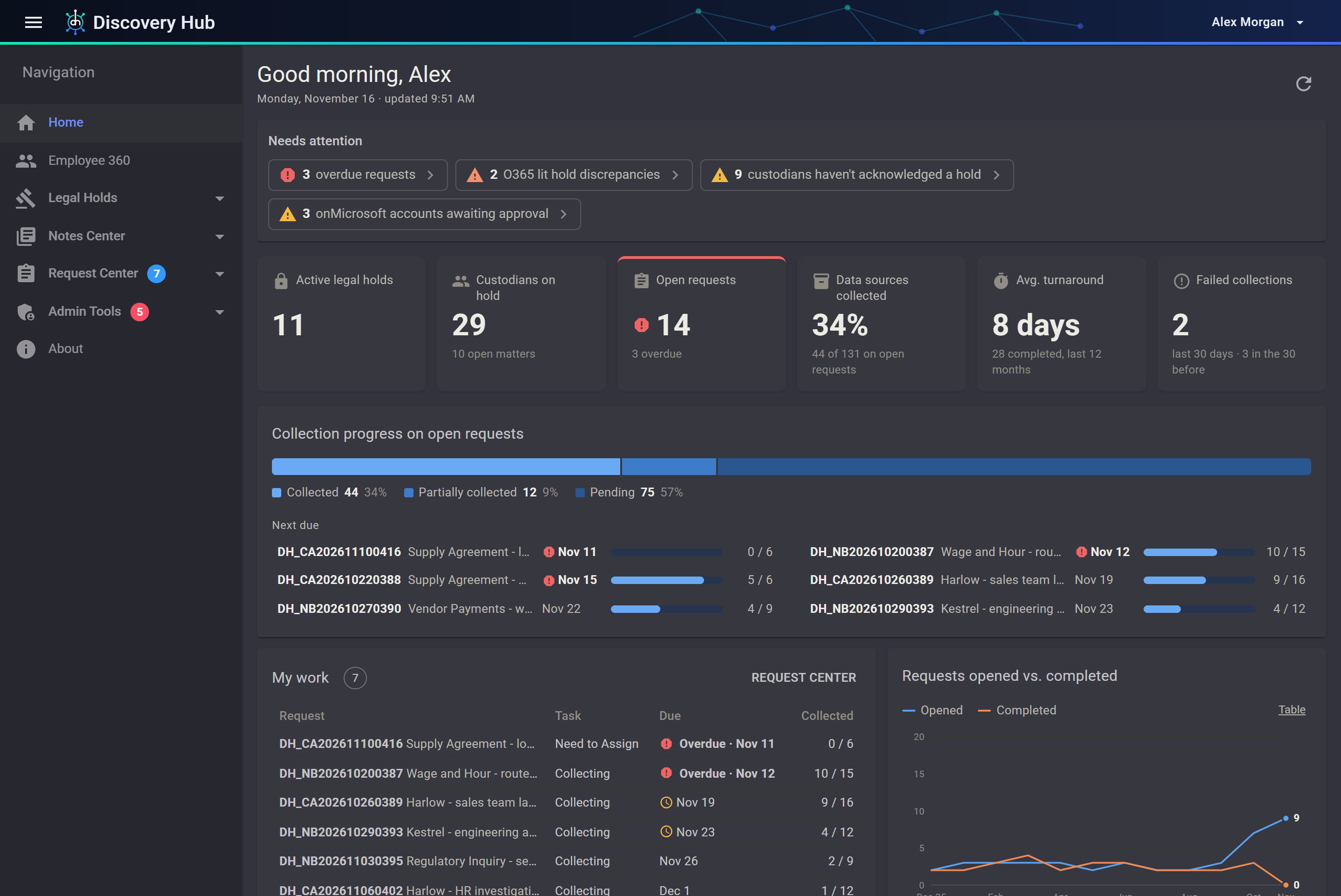
A focused view of the work that needs attention, scoped to the signed-in user.
- Needs attention. Overdue requests, custodians who have not acknowledged a hold, and anything that has gone wrong, each one a click away from the detail.
- Headline numbers. Active legal holds, custodians on hold, open requests, share of data sources collected, average turnaround and recent failed collections.
- Progress and trend. Collection progress across open requests, the next requests due, and requests opened against completed over time.
- My work. The requests and tasks assigned to you, with due dates.
- A daily summary by email. Each person can get their overdue requests, unacknowledged holds and failed collections in one morning email, and turn it off if they prefer.
- Scoped to the viewer. People see their own requests unless they have permission to see the whole organization.
 (opens the full-size image)
Employee 360
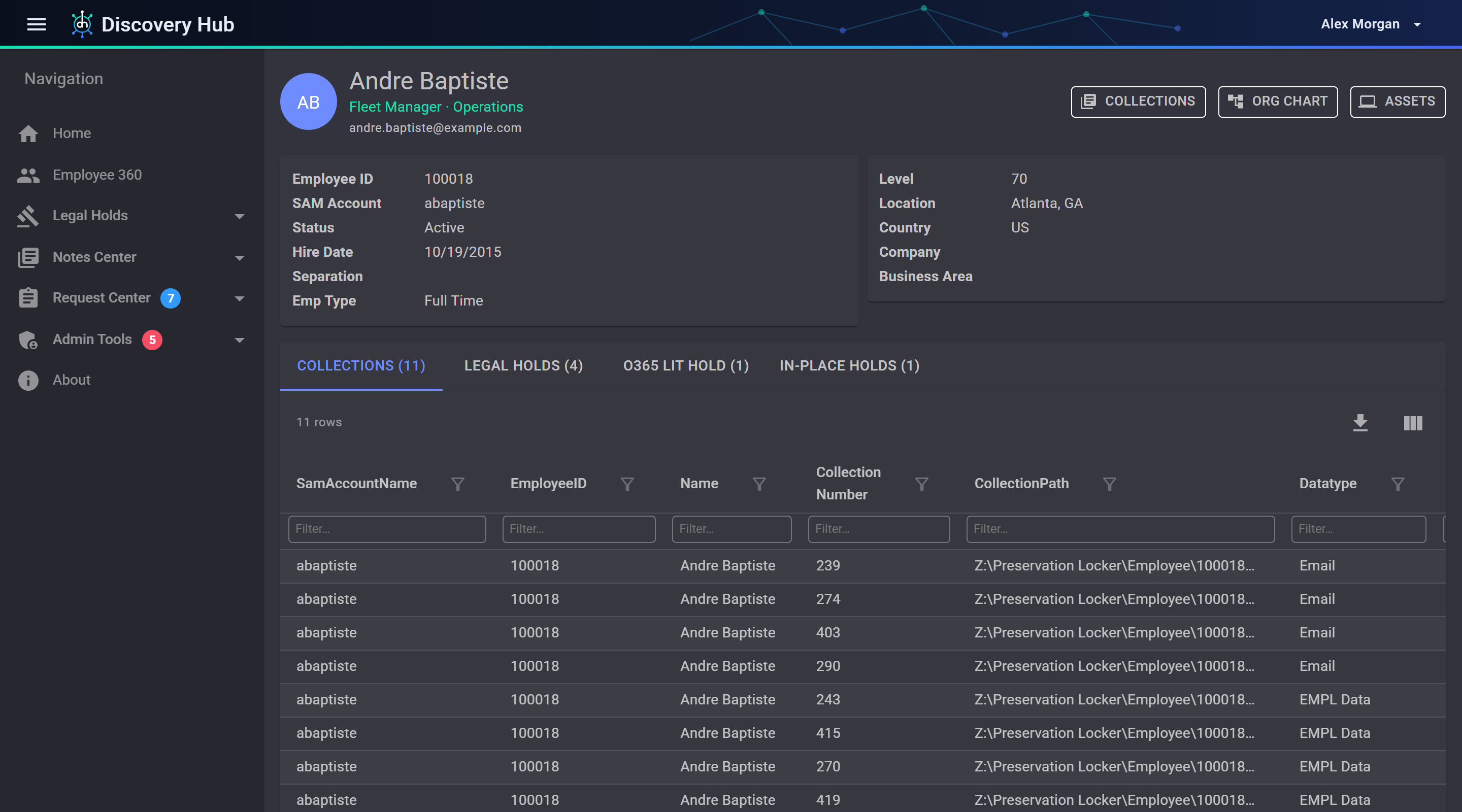
Employee details, source-system records, legal holds and collection history in one place.
- Identity and organization. Role, department and manager, with a click through to the manager and an organization chart.
- Where their data lives. Mailbox and file storage details, directory groups, and the devices assigned to them.
- Device and backup context. With the relevant connectors, review CrashPlan devices, backup history and archive details alongside Jamf and Intune inventory.
- Hold history. Current legal holds and mailbox hold status, and released holds when you ask for them.
- Past collections. What has already been collected from this person.
- Search that scales. Find people by name, email, username or employee ID, or paste a list to look up many at once.
 (opens the full-size image)
Legal holds
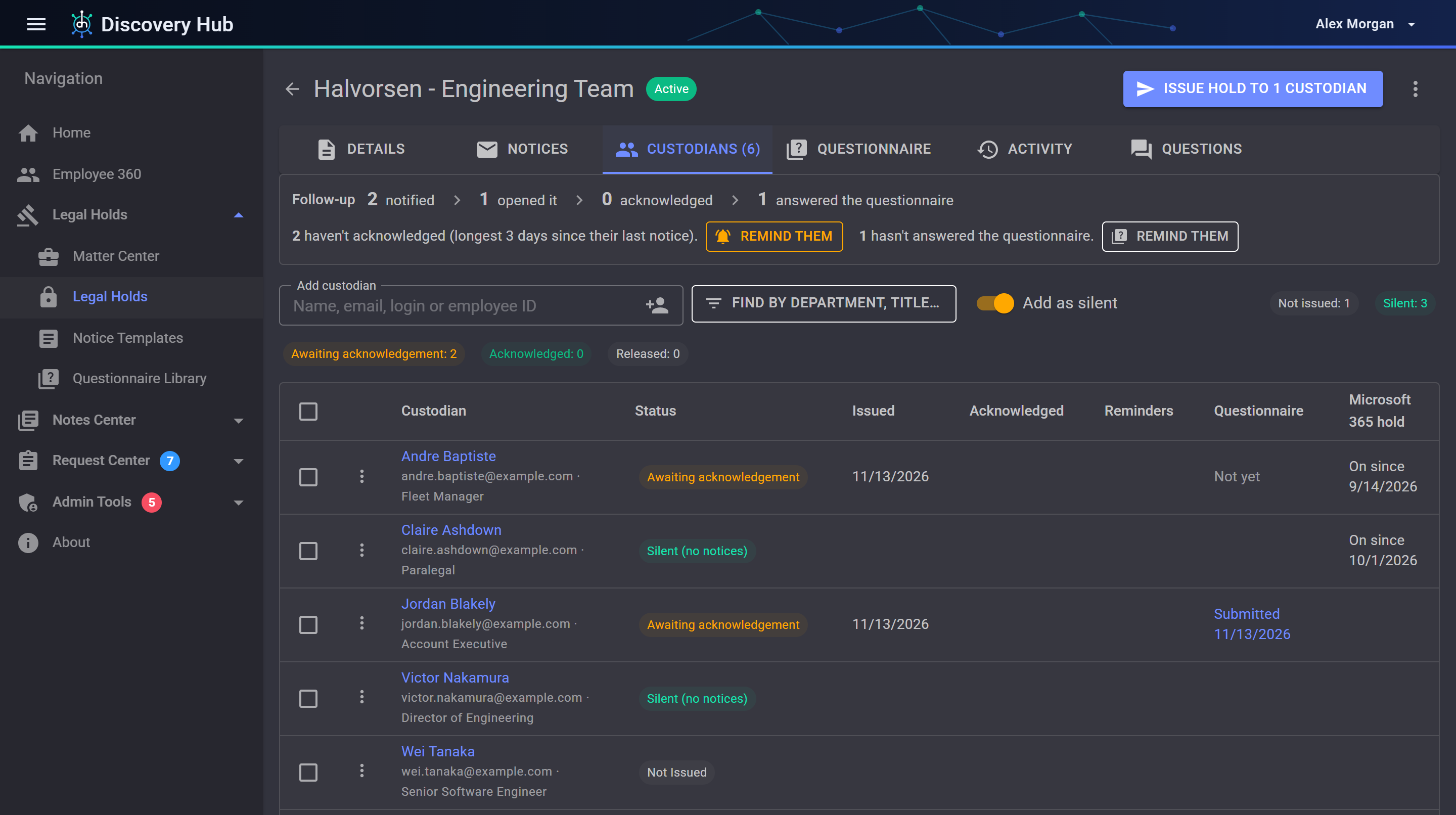
Issue the hold, see who has acknowledged it, and follow up without a spreadsheet.
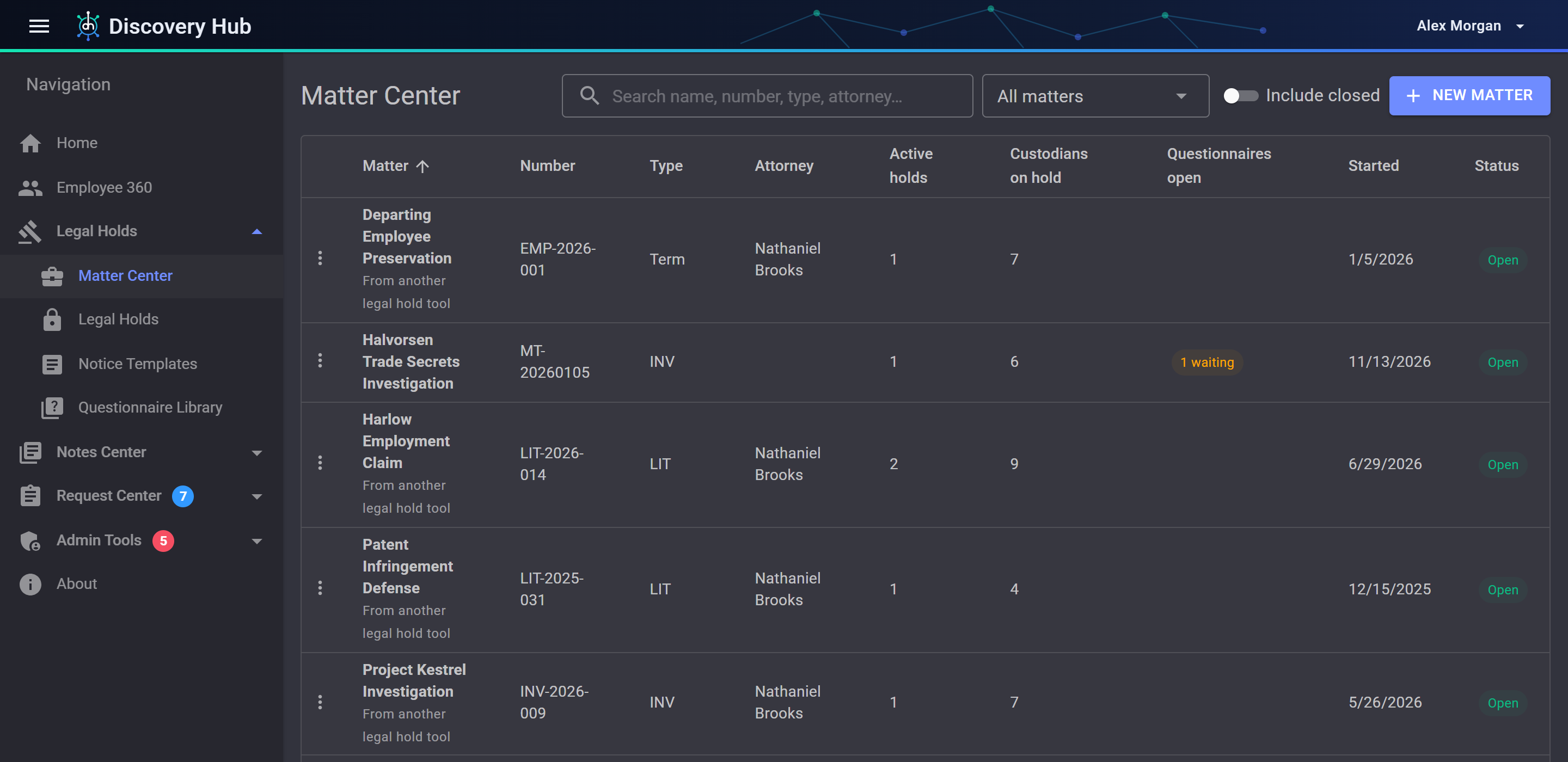
- Matter Center. Every matter with its holds, custodians on hold and open questionnaires in one list.
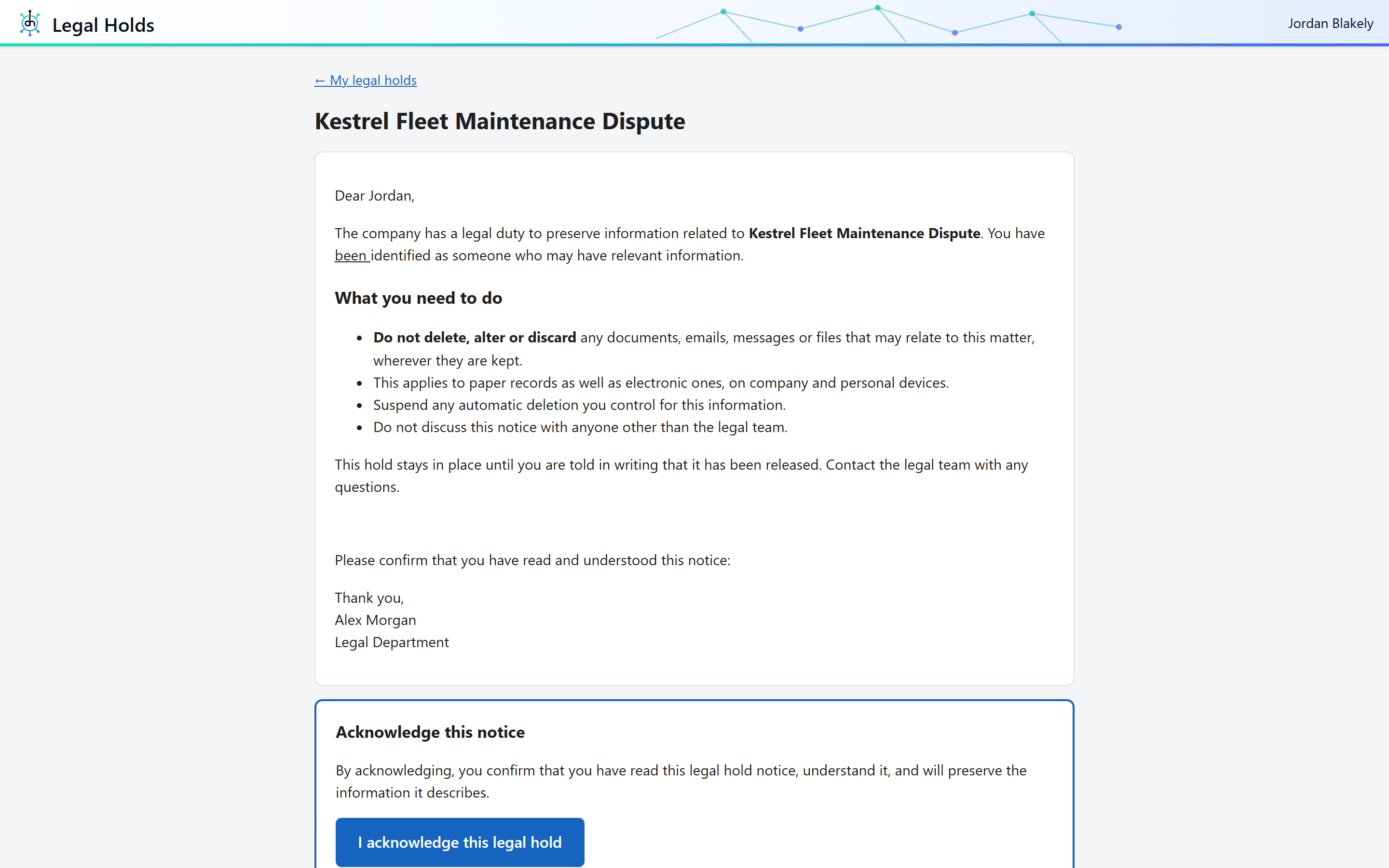
- Notices you control. Write notices from templates, with attachments and pictures. Every saved change is kept, and each notice sent records the version the custodian received.
- Custodian Portal. Custodians open their notice from a personal link or single sign-on, read it and acknowledge it. They can ask a question from the same page.
- Follow-up that runs itself. Reminders, escalations and reissues go out on the schedule you set, and a failed notice is sent again overnight.
- Inactive-hold review. Configure reminders for holds with no recorded views within a chosen interval. The report supports review by the responsible team; it does not release a hold automatically.
- Questionnaires. Ask custodians where their data lives, from a library of questionnaires, and see who has answered.
- Silent custodians. Track and preserve someone's data without sending them a notice.
- Microsoft 365. Optionally place each custodian's mailbox and OneDrive on hold in Microsoft 365 when the hold is issued.
- Existing hold records. Configured imports can bring holds from another system into Discovery Hub alongside holds issued here.
 (opens the full-size image)
 (opens the full-size image)
 (opens the full-size image)
Request Center
Where a collection request is written, assigned and worked.
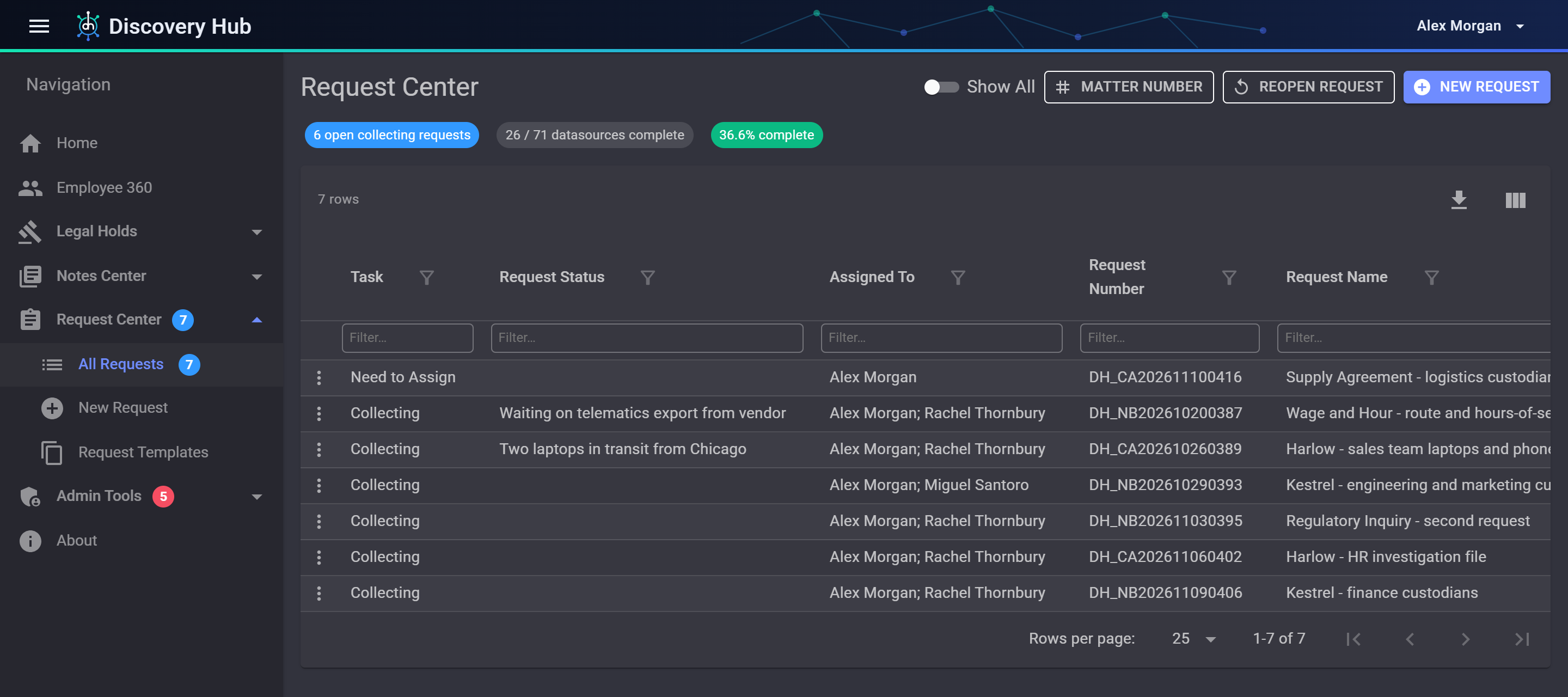
- Start from a hold. Search for the legal hold and build the request against it, on your own behalf or for someone else.
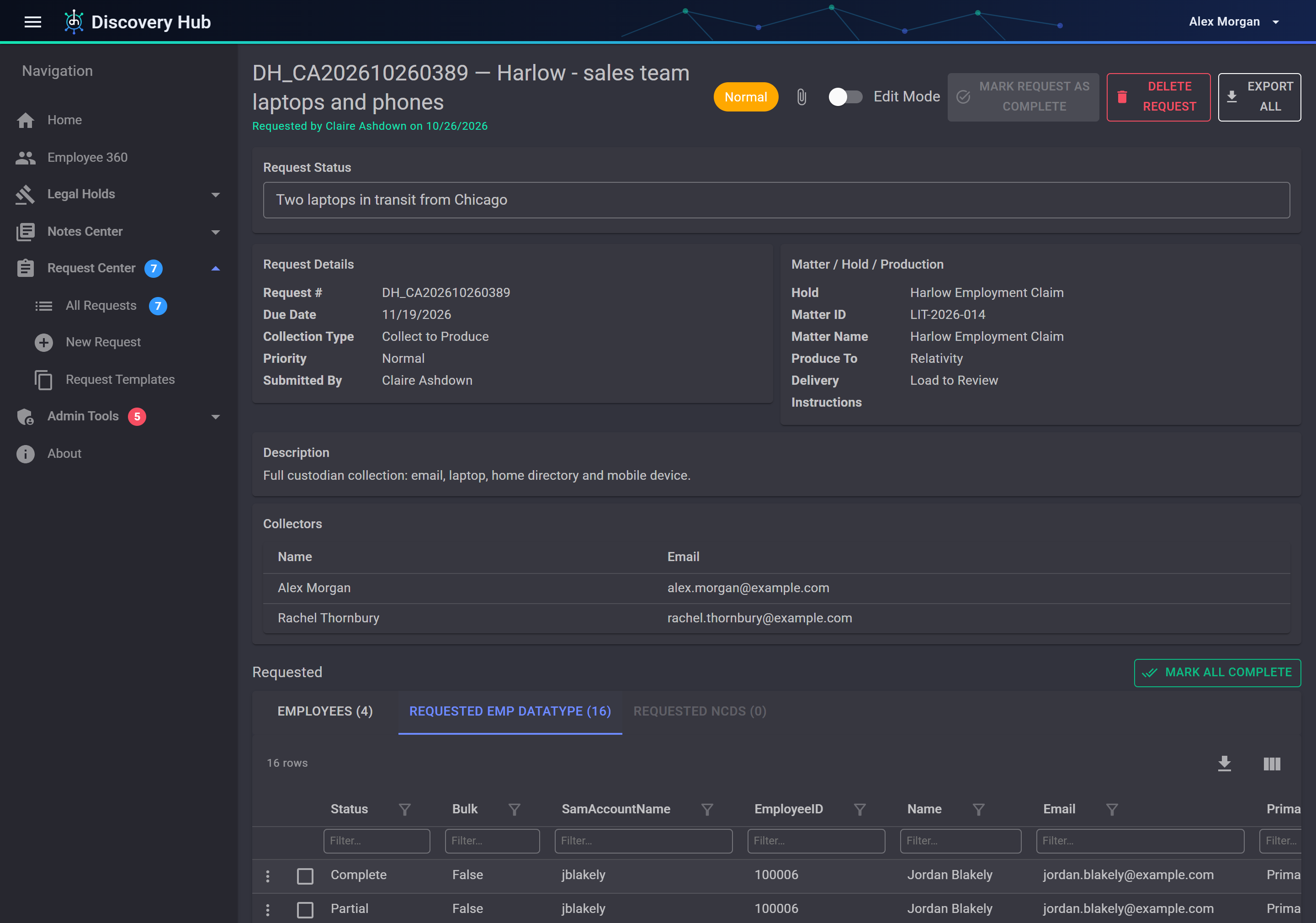
- Say exactly what is needed. Add custodians and the data types for each, with date ranges, keywords and comments.
- Request templates. Save a set of data types and details you ask for often, and start the next request from it.
- Data without a single owner. Request non-custodial sources, such as shared locations, in the same request.
- Delivery details. Set priority, due date, where the data should be produced and how it should be delivered.
- Assignment and notifications. Requests go to collectors, and the emails about a request link straight to it.
- Track every data source. Collectors record each collection, note failures, reuse earlier collections where they already exist, and reopen a request if more is needed.
 (opens the full-size image)
 (opens the full-size image)
Collection records
The running record of what has been collected, for whom, and what happened to it.
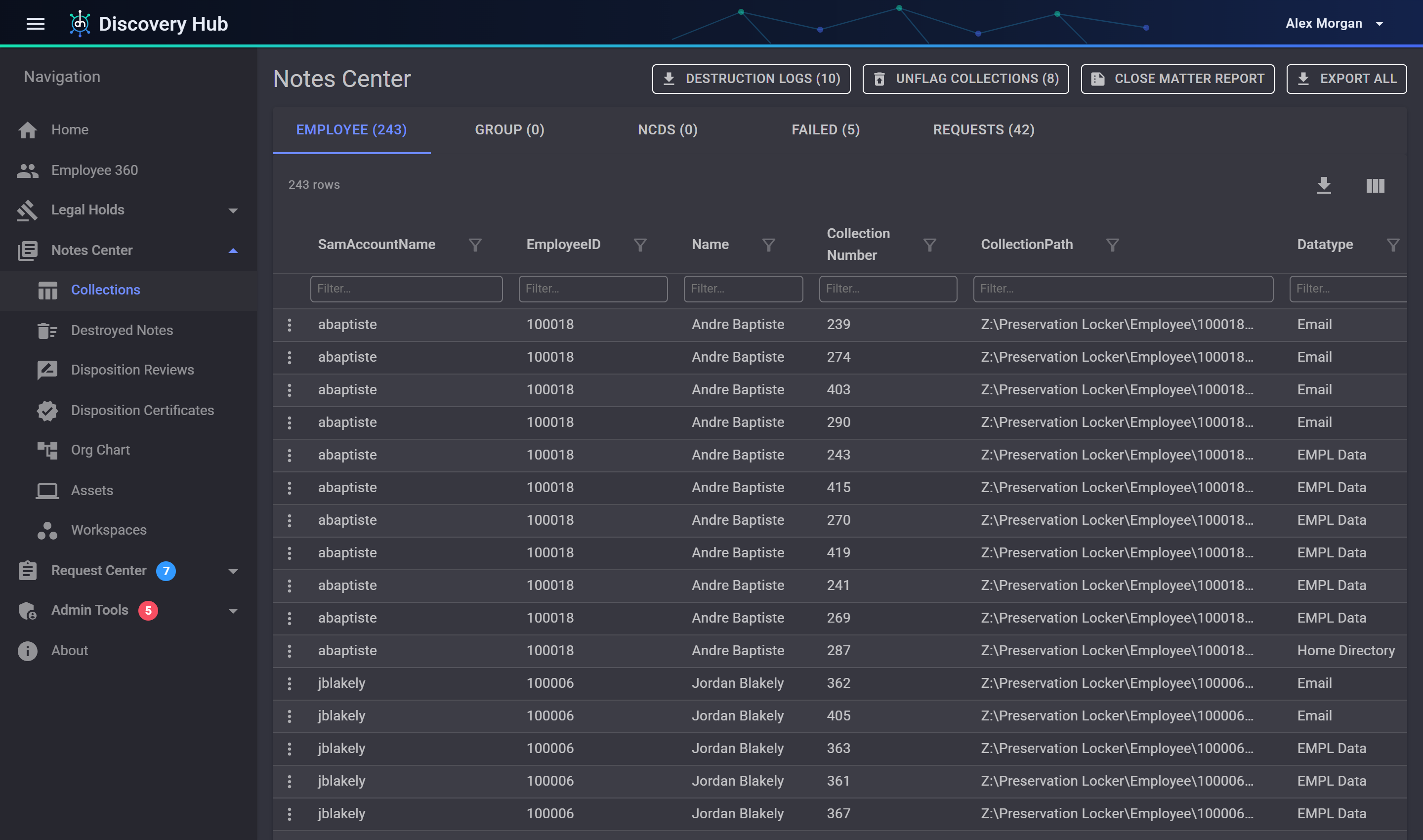
- Everything you hold, at a glance. For any custodian, every collection across all their matters. For any matter, every custodial and non-custodial source collected for it.
- Three views of the same record. Collections by employee, by group, and by non-custodial data source.
- Chain of custody. One report per collection: the request, who created it, notes and productions, file hashes, flagging, review and deletion. Print it or export it to Excel.
- File hashing. Optionally hash every collected file on a schedule, so a file that is altered later is detected.
- Failed collections. A list of collections that could not be completed, and why.
- Close-matter reporting. A report of what was collected for a matter when it closes.
- Storage and production locations. Keep the list of places data is stored and delivered to, managed by administrators.
 (opens the full-size image)
Connectors and preservation
Connect source reporting, supported native holds and configured preservation workflows. Compare capabilities by connector.
- One Preservation page per hold. Preserve each custodian in the systems you connect, see which are done, and release them when the hold ends.
- Microsoft 365. Mailbox and OneDrive holds through Microsoft Purview eDiscovery, and mailbox details on Employee 360.
- Teams, Copilot and Gemini. A Purview mailbox hold also keeps a custodian's Microsoft Teams chats and Microsoft 365 Copilot interactions. Google Vault preservation can add Gemini app holds where your Workspace uses Gemini.
- Native hold connectors. Use supported legal-hold APIs for CrashPlan, Slack, Box, Dropbox and Google Workspace / Vault. Reporting and preservation capabilities depend on the connector, source permissions and provider licensing.
- CrashPlan and Jamf hold organization. Choose one shared Legal Hold Bucket or one hold or group per Discovery Hub hold. Jamf manages static computer-group membership for your policies; that membership alone does not retain files or prevent a device wipe.
- Preservation audits and backup reminders. Review source coverage against Discovery Hub records and send warnings for discrepancies. CrashPlan can flag held custodians without a completed backup within your chosen interval; one recent completed backup across their devices satisfies the custodian check.
- Microsoft Intune. Each custodian's managed devices on Employee 360 and the legal hold, with an optional check that every device has a recent CrashPlan backup.
- Active Directory groups. Keep a group's members in step with the custodians on a hold, for tools that preserve by group.
- HR data feed, included. Configure field mapping, a matching key such as Employee ID, and file handling from the HR connector. Receive CSV or JSON through an authenticated API, upload a file or poll a configured server folder. Review unfamiliar fields before mapping or creating them, and choose completion or issue notifications.
- Evaluate reporting before licensing. Supported unlicensed connectors can import up to ten source metadata records into separate demo storage after credentials and permissions are configured. Demo options are hidden for licensed connectors.
AI conversations
Collect available AI conversation records for retention, review and export in your environment. Review source coverage and setup requirements.
- Enterprise compliance APIs. Collect available Claude and ChatGPT conversation records, recognized messages and downloadable attachments into separate archives. Claude collection also covers projects and their documents, Claude Code sessions, code artifacts and, optionally, the Activity Feed; ChatGPT collection can add further log event types you configure. Source permissions and validated coverage determine what can be collected.
- Retention with legal-hold protection. Default retention is six calendar months from original message dates. Active holds protect a custodian's records; after the last hold is released, expired records become eligible on a successful nightly run. Unknown dates, unresolved identities and mapping issues block cleanup.
- Conversation context. Read retained prompts and responses together, inspect source-linked replies and attachments, and select messages or a conversation for tagging and export.
- Search and review. Search the text of each record with words, phrases and OR, and filter by custodian, legal hold, date, type, tag and coding. Reviewers see the custodians on the legal holds they can access. Attachment binary contents are not indexed.
- Coding and privilege logs. Code records as responsive, not responsive or needing further review, and mark privilege with a basis and description. Exports withhold privileged records by default and include a privilege log.
- Review exports and integrity. Export PDF, Excel, CSV or native JSON packages with optional attachments and a hash manifest. Retain provider JSON and record versions, verify stored files before export and audit review activity.
- Coverage and monitoring. Collection makes local copies without changing provider holds or retention. If collection stops succeeding, administrators are warned and then alerted daily, with the days left in ChatGPT's 30-day log window. Review failures and availability gaps, retain unrecognized events, and verify ChatGPT mappings before enabling cleanup. Content already unavailable at the source cannot be recovered.
Defensible disposition
Delete what you no longer need to keep, and be able to show how the decision was made.
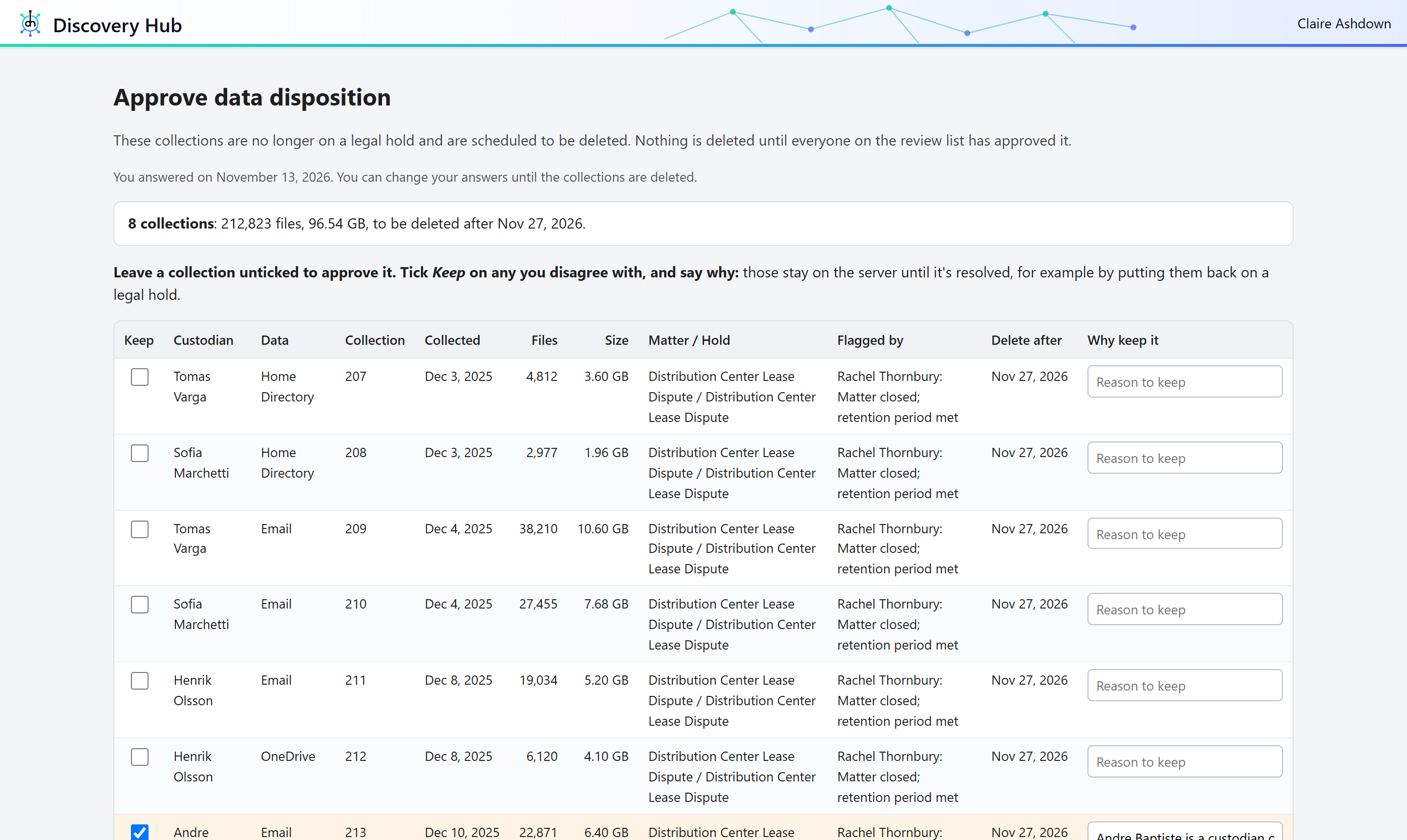
- Approval before deletion. When you require it, collections flagged for deletion go to your Disposition Approvers first, and nothing is deleted until every one of them has approved it.
- A simple page for Disposition Approvers. Each Disposition Approver gets their own link to a table of the collections, with files, size, matter and reason. They approve, or tick the ones to keep and say why.
- Objections are resolved, not lost. An objected collection waits until someone with authority keeps it or disposes of it, with a note.
- Never while on hold. Data that has gone back on a legal hold is taken out of the run before anything is deleted.
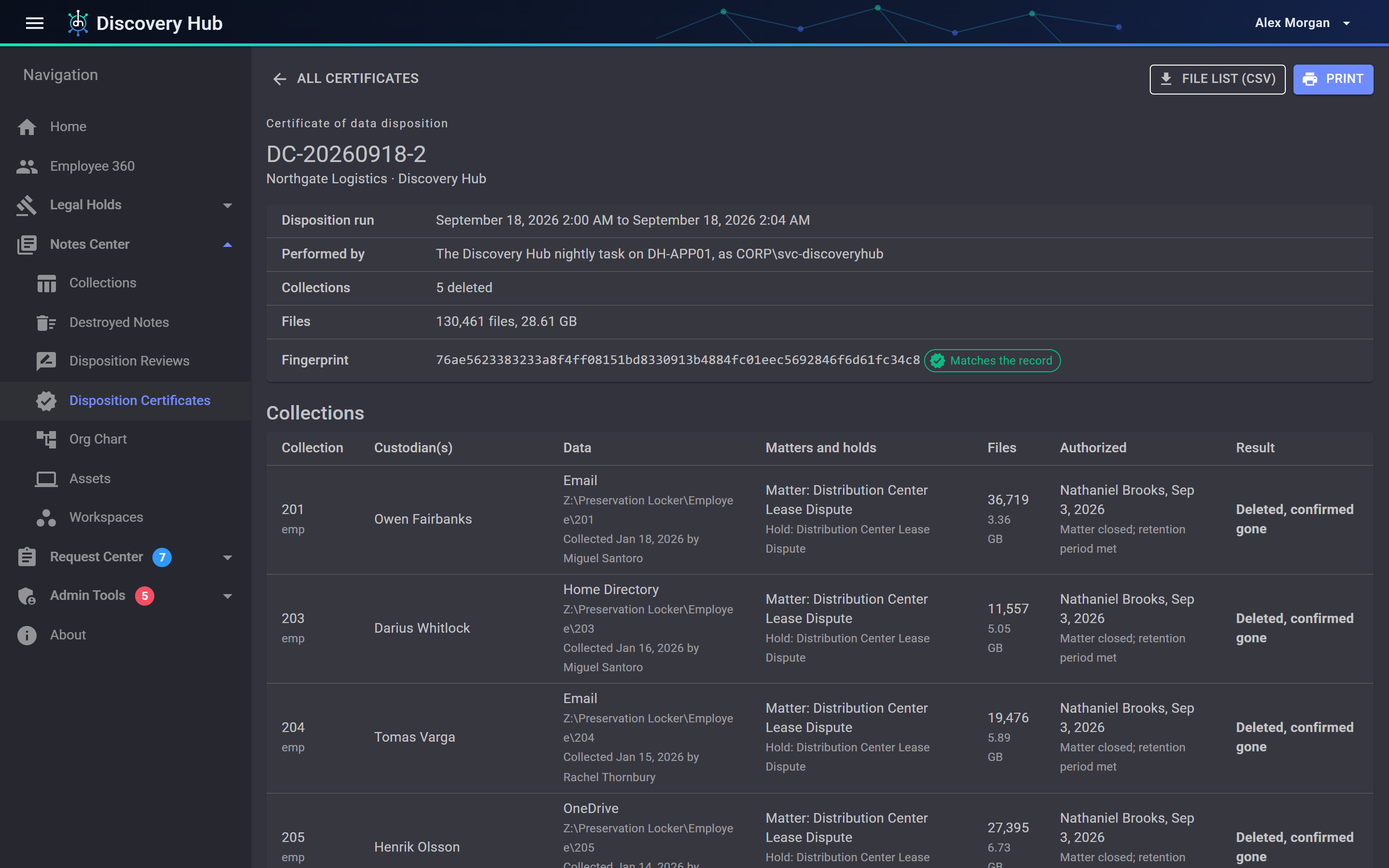
- Disposition certificates. Each run records what was deleted, who authorized it and why, and every file in it, with a fingerprint that shows if the record is changed afterwards.
- Confirmed gone. A collection is marked deleted only once its folder is confirmed to be gone.
 (opens the full-size image)
 (opens the full-size image)
Reporting
The right numbers reach the right people, without anyone having to remember to send them.
- Scheduled reports. Pick a report, choose who gets it and how often, and Discovery Hub sends it overnight as an Excel or CSV attachment with the date in its name.
- See it before it goes. Run a report against today's data to check what it will send. Nothing goes out until you switch it on.
- Your wording. Write the subject and message yourself, and drop the report's counts and table straight into the email. Choose the address it comes from and its priority, and skip the email on days the report finds nothing.
- Reports for closing a matter. When a hold is released, a report lists the data collected for it that is no longer on any hold, ready for disposition.
- Records you can hand over. A chain of custody report for any collection, a certificate for every disposition run, and an access review of every user and permission for your auditors.
- What changed overnight. A nightly report of what was added to, changed in or removed from your preservation storage, and a daily summary for each person of what needs their attention.
- Operational review. Add inactive-hold reminders, preservation-audit warnings and custodian backup checks to the reports relevant to your program.
- Grid exports. Export supported data grids to Excel or CSV using the columns, filters and order selected on screen.
Administration and access
Run it without a developer, and decide exactly who can do what.
- Detailed permissions. Roles and individual permissions decide which pages and actions each person gets.
- Sign-in your way. Windows sign-in or single sign-on through your identity provider using OpenID Connect.
- Session control. Idle timeout with a warning, a maximum session length, and a log of sign-ins.
- Lists you can shape. Filter any column, choose and order the columns you see, and export to Excel or CSV exactly as shown on screen.
- Managed updates. Administrators can install signed releases from the About page, with package verification and a database backup before the update.
- Light or dark. Each person picks their theme and time zone.
Want to see these in action?
Book a demo and we will walk through the parts that matter most to your team.